Plugin: Persistent Music
Full source code is available on Github: PersistentMusicPlugin.
As it turns out, I love plugins! Common codebase, reuseable code, and the ability to share fundamental systems across miltiple projects.
Now, for this particular snack, I’ll go through my process of creating a plugin that I actually needed for one of my projects. This is not just a “how to make a plugin” guide, but more of a practical and real example of how I went about it for a real problem I had to solve.
A quick note of what we’ll be building: a plugin that enables us to play music continuously across level transitions. The plugin will allow us to keep the music playing seamlessly as we transition between levels. If you’ve ever played Rocket League, you know what I’m talking about. Their banger soundtrack keep playing event as you transition between the main menu and the actal game.
Unreal Engine has their own documentation on plugins as well.
1. Basic setup
Let’s call our plugin Persistent Music.
We’ll need the following classes and structs:
| Class Name | Description |
|---|---|
FPersistentMusicModule | The main module class that will handle the plugin’s lifecycle. |
FPersistentMusicTrack | A struct that represents a music track, containing information such as the audio asset, volume, and any other relevant properties. |
UPersistentMusicPlaylist | A data asset class that will hold the playlist of music tracks. |
UPersistentMusicSettings | A settings class that will allow users to configure the plugin’s behavior, such as enabling/disabling the plugin, setting default volume, etc. |
UPersistentMusicGameInstanceSubsystem | A subsystem that will manage the music playback and ensure it persists across level transitions. |
2. Setup the plugin
First order of business: setting up the plugin itself.
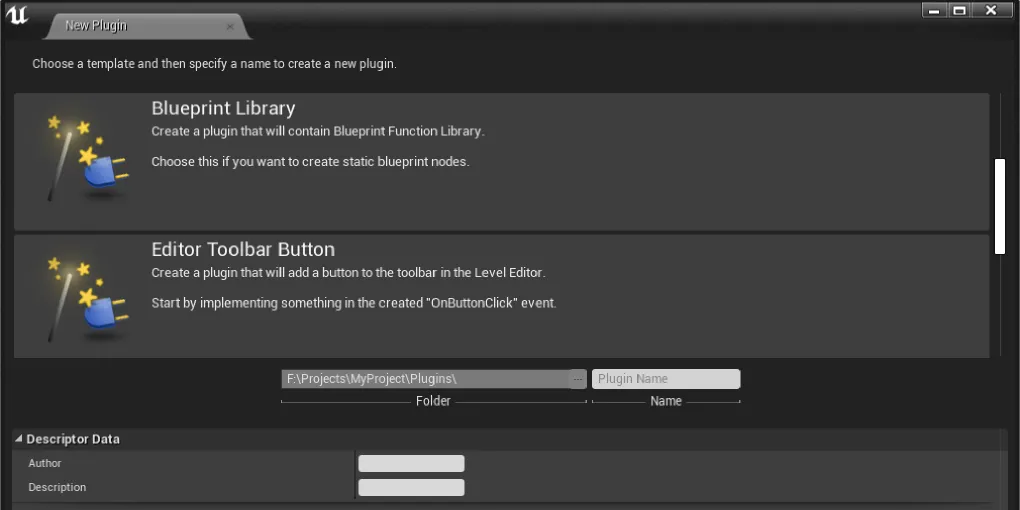
In Unreal Engine, you can create a new plugin by going to the Edit menu, selecting Plugins, and then clicking on the New Plugin button.
Choose the Blank template, give it a name (PersistentMusic), and create the plugin.
This will generate the basic folder structure and files for your plugin.
For this particular plugin, we need a few public dependencies, such as Core, CoreUObject, Engine, and DeveloperSettings.
Let’s set these up in the PersistentMusic.Build.cs file:
using UnrealBuildTool;

public class PersistentMusic : ModuleRules
{
    public PersistentMusic(ReadOnlyTargetRules Target) : base(Target)
    {
        PCHUsage = ModuleRules.PCHUsageMode.UseExplicitOrSharedPCHs;

		// ...

        PublicDependencyModuleNames.AddRange(
            new string[]{
                "CoreUObject",
                "Engine",
                "Core",
                "DeveloperSettings"
            });

		// ...
    }
}
And for our actual game module, we’ll need to include our new plugin module as a dependency.
It’s as simple as adding PersistentMusic to the PublicDependencyModuleNames array in our game’s .Build.cs file:
public class MyGame : ModuleRules
{
    public MyGame(ReadOnlyTargetRules Target) : base(Target)
    {
        PCHUsage = PCHUsageMode.UseExplicitOrSharedPCHs;

		// ...

        PublicDependencyModuleNames.AddRange(new string[] {
			// other dependencies...
            "PersistentMusic" // Add our plugin as a dependency
        });

		// ...
    }
}
All done. Our game module is not dependent on our plugin and readyb for use.
FPersistentMusicModule
The module class is the entry point of our plugin, inheriting from IModuleInterface, and handles the initialization and shutdown of our plugin.
For our plugin, we actually don’t have any initialization logic, so we’ll leave the StartupModule and ShutdownModule functions empty for now.
#pragma once

#include "Modules/ModuleManager.h"

class FPersistentMusicModule : public IModuleInterface
{
public:
	virtual void StartupModule() override;
	virtual void ShutdownModule() override;
};#include "PersistentMusic.h"
#define LOCTEXT_NAMESPACE "FPersistentMusicModule"
void FPersistentMusicModule::StartupModule()
{
}
void FPersistentMusicModule::ShutdownModule()
{
}
#undef LOCTEXT_NAMESPACE
IMPLEMENT_MODULE(FPersistentMusicModule, PersistentMusic)FPersistentMusicTrack
Let’s quickly define our FPersistentMusicTrack struct, which will represent a music track in our playlist.
Now, we might have several “types” without any sort of implementation details, so it would make sense for us to simply create
a PersistentMusicTypes.h file to hold all of our public structs, enums, etc.
So let’s create a new file called PersistentMusicTypes.h in our Public folder, and define our struct there:
#include "CoreMinimal.h"
#include "PersistentMusicTypes.generated.h"

USTRUCT(BlueprintType)
struct PERSISTENTMUSIC_API FPersistentMusicTrack
{
	GENERATED_BODY()

public:
	/** Track title. */
	UPROPERTY(EditDefaultsOnly, BlueprintReadOnly)
	FText Title;

	/** Name of the artist. */
	UPROPERTY(EditDefaultsOnly, BlueprintReadOnly)
	FText Artist;

	/** Optional album name. */
	UPROPERTY(EditDefaultsOnly, BlueprintReadOnly)
	FText Album;

	/** Optional track image. */
	UPROPERTY(EditDefaultsOnly, BlueprintReadOnly)
	TObjectPtr<UTexture2D> Image;

	/** The actual sound asset. */
	UPROPERTY(EditDefaultsOnly, BlueprintReadOnly)
	TSoftObjectPtr<USoundBase> SoundAsset;
};
UPersistentMusicPlaylist
Inspired by Rocket League, we also want the ability to define playlists. This’ll allow us to group multiple tracks together, define a “default playlist” that should play when the game starts, allow us to change the default playlist whenever we want (imaging a new content path for your game, with a new default playlist), and so on. We could definitely use this.
Let’s create 2 new files: PersistentMusicPlaylist.h in our Public folder,
and the implementation details in PersistentMusicPlaylist.cpp in our Private folder.
#pragma once

#include "CoreMinimal.h"
#include "Engine/DataAsset.h"
#include "PersistentMusicTypes.h"
#include "PersistentMusicPlaylist.generated.h"

// Forward declarations
class UTexture2D;

/** A playlist for grouping music tracks. */
UCLASS(BlueprintType)
class PERSISTENTMUSIC_API UPersistentMusicPlaylist : public UPrimaryDataAsset
{
	GENERATED_BODY()

public:
	static const FPrimaryAssetType PrimaryAssetType;
	virtual FPrimaryAssetId GetPrimaryAssetId() const override
	{
		return FPrimaryAssetId(PrimaryAssetType, GetFName());
	}

	/** Playlist title. */
	UPROPERTY(EditDefaultsOnly, BlueprintReadOnly)
	FText DisplayName;

	/** Optional playlist image. */
	UPROPERTY(EditDefaultsOnly, BlueprintReadOnly)
	TSoftObjectPtr<UTexture2D> Artwork;

	/** Tracks part of the playlist. */
	UPROPERTY(EditDefaultsOnly, BlueprintReadOnly)
	TArray<FPersistentMusicTrack> Tracks;

	/** Whether to shuffle the playlist or not. */
	UPROPERTY(EditAnywhere)
	bool bShuffle = false;

	/** Whether to loop the playlist or not. */
	UPROPERTY(EditAnywhere)
	bool bLoop = true;
};
And the only thing we need in the implementation file is the definition of our PrimaryAssetType, as I’ve decided to make
our playlist a primary data asset, so that we can easily reference it and load it at runtime.
#include "PersistentMusicPlaylist.h"

const FPrimaryAssetType UPersistentMusicPlaylist::PrimaryAssetType(TEXT("PersistentMusicPlaylist"));
UPersistentMusicSettings
It would be great if we actually had somewhere to set and change the default playlist, as well as defining some other
properties and settings relevant to the plugin. This is a perfect use case for a UDeveloperSettings inherited class.
As we have no implementation details for this class, we can just define everything in the header file.
Let’s create the PersistentMusicSettings.h file in our Public folder.
#include "CoreMinimal.h"
#include "Engine/DeveloperSettings.h"
#include "PersistentMusicSettings.generated.h"

class UPersistentMusicPlaylist;

UCLASS(Config=Game, DefaultConfig, meta = (DisplayName="Persistent Music"))
class PERSISTENTMUSIC_API UPersistentMusicSettings : public UDeveloperSettings
{
	GENERATED_BODY()

public:
	/**
	 * Returns the category name for the settings.
	 *
	 * This defines in which "Project settings" category these specific settings will appear.
	 */
	virtual FName GetCategoryName() const override { return TEXT("Game"); }

	UPROPERTY(EditDefaultsOnly, Config, Category = "Audio Routing", meta = (ClampMin="0.0", ClampMax="1.0"))
	float DefaultMusicVolume = 1.0f;

	UPROPERTY(EditDefaultsOnly, Config, Category = "Audio Routing")
	TSoftObjectPtr<USoundClass> MusicSoundClass;

	UPROPERTY(EditDefaultsOnly, Config, Category = "Audio Routing")
	TSoftObjectPtr<USoundMix> UserSoundMix;

	/** The default playlist to play. */
	UPROPERTY(EditDefaultsOnly, Config, Category = "Playlist")
	TSoftObjectPtr<UPersistentMusicPlaylist> DefaultPlaylist;

	/** Will automatically begin playing the default playlist on game start, whenever a world has become available. Requires a default playlist. */
	UPROPERTY(EditDefaultsOnly, Config, Category = "Startup", meta = (EditCondition="DefaultPlaylist.IsValid()"))
	bool bAutoPlayOnStartup = true;

	/** If false, auto play will be suppressed when runnning Play-In-Editor. Has no effect outside of the editor. */
	UPROPERTY(EditDefaultsOnly, Config, Category = "Startup", meta = (EditCondition="bAutoPlayOnStartup"))
	bool bSuppressAutoPlayInPIE = false;
};
The settings are now ready for us to set in the editor, and use at runtime.
UPersistentMusicGameInstanceSubsystem
Now we’re getting somewhere, and now it’s gettig interesting.
Until this part, we’ve only been defining data structures, classes, assets, and settings. Nothing is playing anything yet. We’ve only set up the fundamentatls and the boilerplate needed. It’s time for us to add the actual logic and functionality needed to actually begin playing music.
For this plugin, and the exact functionality we’re after, we’ll need a UGameInstanceSubsystem.
A UGameInstanceSubsystem is a subsystem that is tied to the UGameInstance, which means it will persist across level transitions,
and is perfect for managing our music playback. Basically it “lives” as long as the game is running, no matter the state of the levels, worlds, etc.
The plugin API
The public API of the subsysytem is pretty straight forward, and exactly what you’d expect for a regular music player: play, pause, stop, and skip.
Furthermore, we want the ability to retrieve the details of the track that is currently playing, so we’ll also define a GetCurrentTrack function.
What we also want, is the ability to be notified during certain events, like whenever the a new track begins playing, whenever the music has been paused or stopped.
So we’ll also define some delegates using DECLARE_DYNAMIC_MULTICAST_DELEGATE_*.
For details on the different delegate types, refer to Unreal Garden. Ben does an amazing job at describing the different delegates, and when to use them. I decided to go for
MULTICAST_DELEGATEas I want to notify anyone who might be interested and support event binding in blueprints.
Just like previously, we’ll need to add 2 files: PersistentMusicGameInstanceSubsystem.h in our Public folder, and PersistentMusicGameInstanceSubsystem.cpp in our Private folder.
We’ll start by defining our API and whatever helpers functions and class members we’ll need for this to actually work.
#include "CoreMinimal.h"
#include "Subsystems/GameInstanceSubsystem.h"
#include "PersistentMusicTypes.h"
#include "PersistentMusicGameInstanceSubsystem.generated.h"

struct FStreamableHandle;
struct FPersistentMusicPlaylistEntry;
class UAudioComponent;
class UPersistentMusicPlaylist;
class USoundBase;
class UWorld;

DECLARE_DYNAMIC_MULTICAST_DELEGATE_OneParam(FOnPlaylistChanged, UPersistentMusicPlaylist*, NewPlaylist);
DECLARE_DYNAMIC_MULTICAST_DELEGATE_TwoParams(FOnTrackStarted, int32, TrackIndex, FPersistentMusicTrack, Track);
DECLARE_DYNAMIC_MULTICAST_DELEGATE(FOnPlaybackStarted);
DECLARE_DYNAMIC_MULTICAST_DELEGATE(FOnPlaybackPaused);
DECLARE_DYNAMIC_MULTICAST_DELEGATE(FOnPlaybackStopped);

/**
 * Game instance subsystem responsible for persistent music playback across level transitions.
 * Manages playlist selection, track progression, async loading, and playback state.
 */
UCLASS(BlueprintType)
class PERSISTENTMUSIC_API UPersistentMusicGameInstanceSubsystem : public UGameInstanceSubsystem
{
	GENERATED_BODY()

public:
	// Subsystem lifecycle
	virtual void Initialize(FSubsystemCollectionBase& Collection) override;
	virtual void Deinitialize() override;

public:
	// Playback events
	UPROPERTY(BlueprintAssignable, Category = "Persistent Music")
	FOnTrackStarted OnTrackStarted;

	/** Fired whenever the playback beings. Will also be fired when transitioning from Stop() to Play(). */
	UPROPERTY(BlueprintAssignable, Category = "Persistent Music")
	FOnPlaybackStarted OnPlaybackStarted;

	UPROPERTY(BlueprintAssignable, Category = "Persistent Music")
	FOnPlaybackPaused OnPlaybackPaused;

	/** Fired whenever the playback stops from Stop() or whenever the playback stops because is reached the end of the playlist, and UPersistentMusicPlay.bLoop is false. */
	UPROPERTY(BlueprintAssignable, Category = "Persistent Music")
	FOnPlaybackStopped OnPlaybackStopped;

public:
	// Playlist control
	UPROPERTY(BlueprintAssignable, Category = "Persistent Music|Playlist")
	FOnPlaylistChanged OnPlaylistChanged;


	UFUNCTION(BlueprintPure, Category = "Persistent Music|Playlist")
	TArray<FPersistentMusicPlaylistEntry> GetAllPlaylistEntries() const;

	/** Sets the active playlist and can optionally begin playback immediately. */
	UFUNCTION(BlueprintCallable, Category = "Persistent Music|Playlist")
	void SetPlaylist(UPersistentMusicPlaylist* NewPlaylist, bool bStartPlayback = true, bool bRestartFromBeginning = true);

public:
	// Playback control
	UFUNCTION(BlueprintCallable, Category = "Persistent Music")
	void Play();

	UFUNCTION(BlueprintCallable, Category = "Persistent Music")
	void Pause();

	UFUNCTION(BlueprintCallable, Category = "Persistent Music")
	void Stop();

	/** Advances to the next track in the current playlist and starts playback. */
	UFUNCTION(BlueprintCallable, Category = "Persistent Music")
	void Skip();

	UFUNCTION(BlueprintPure, Category = "Persistent Music")
	bool IsPlaying() const;

	UFUNCTION(BlueprintPure, Category = "Persistent Music")
	bool GetCurrentTrack(FPersistentMusicTrack& OutTrack) const;

	const FPersistentMusicTrack* FindCurrentTrack() const;

public:
	// Settings
	UFUNCTION(BlueprintCallable, Category = "Persistent Music|Volume")
	void SetMusicVolume(float Volume);

private:
	// Playlist helpers
	TArray<TSoftObjectPtr<UPersistentMusicPlaylist>> GetAllPlaylists() const;

	// Playback helpers
	void StartTrackPlayback(USoundBase* Sound);
	void PlayCurrentTrack();
	bool AdvanceToNextTrack();
	float GetCrossfadeSeconds(const UPersistentMusicPlaylist* Playlist) const;
	void OnTrackLoaded(uint64 RequestId);

	UFUNCTION()
	void HandleTrackFinished();

private:
	// World & startup helpers
	void HandlePostWorldInit(UWorld* World, const UWorld::InitializationValues IVS);
	void HandleWorldBeginPlay();

private:
	// Runtime playback objects
	UPROPERTY(Transient)
	TObjectPtr<UWorld> CachedGameWorld = nullptr;

	UPROPERTY(Transient)
	TObjectPtr<UAudioComponent> MusicComponent = nullptr;

	UPROPERTY(Transient)
	TObjectPtr<UPersistentMusicPlaylist> CurrentPlaylist = nullptr;

	UPROPERTY(Transient)
	TObjectPtr<UPersistentMusicPlaylist> PendingAutoPlaylist = nullptr;

private:
	// Runtime playback state
	int32 CurrentTrackIndex = INDEX_NONE;
	TSharedPtr<FStreamableHandle> PendingLoadHandle;
	uint64 PlayRequestId = 0;

	bool bPendingAutoPlay = false;
	bool bAutoPlayHandled = false;
};
Next, we’ll actually implement the functionality. Since this is a “larger” class, let’s go through the functions one by one.
First off, we need the following includes:
#include "PersistentMusicGameInstanceSubsystem.h"

#include "Components/AudioComponent.h"
#include "Engine/AssetManager.h"
#include "Engine/StreamableManager.h"
#include "Engine/World.h"
#include "Kismet/GameplayStatics.h"
#include "Sound/SoundClass.h"
#include "Sound/SoundMix.h"
#include "PersistentMusicPlaylist.h"
#include "PersistentMusicSettings.h"
Handling initialization
Let’s take a look at the Initialize functions.
void UPersistentMusicGameInstanceSubsystem::Initialize(FSubsystemCollectionBase& Collection)
{
	Super::Initialize(Collection);

	const UPersistentMusicSettings* Settings = GetDefault<UPersistentMusicSettings>();
	if (Settings && Settings->bAutoPlayOnStartup)
	{
		if (Settings->DefaultPlaylist.IsNull())
		{
			UE_LOG(LogPersistentMusic, Error, TEXT("Cannot being auto play: unable to resolve default playlist."));
			return;
		}

		// Load values to set when the world is ready
		PendingAutoPlaylist = Settings->DefaultPlaylist.LoadSynchronous();
		bPendingAutoPlay = true;

		FWorldDelegates::OnPostWorldInitialization.AddUObject(this, &ThisClass::HandlePostWorldInit);
	}

	UE_LOG(LogPersistentMusic, Log, TEXT("Persistent Music subsystem initialized!"));
}
This is actually quite interesting, since we’re utilizing FWorldDelegate.
Since we want to play music, we need a UWorld in which to spawn the initial UAudioComponent that we’ll use to play the music through.
Since this is a game instance subsystem, by the time this is loaded (whenever the game is started), we do not have a loaded level yet.
Therefore, we can use the FWorldDelegates to get notified whenever a world has been loaded. This is the core purpose of our HandlePostWorldInit function.
Besides that, we want to load the settings we defined earlier, especially since we need to know whether we sohuld start playing the default playlist immediately or not. We’ll load the values from the settings into some temporary variables, that we can handle whenever the first world is loaded.
Let’s see what we actually do in the HandlePostWorldInit function.
void UPersistentMusicGameInstanceSubsystem::HandlePostWorldInit(UWorld* World, const UWorld::InitializationValues IVS)
{
	if (!World || !World->IsGameWorld())
	{
		return;
	}

	if (World->GetGameInstance() != GetGameInstance())
	{
		return;
	}

	CachedGameWorld = World;
	CachedGameWorld->OnWorldBeginPlay.AddUObject(this, &ThisClass::HandleWorldBeginPlay);
}
Funny enough, we don’t do much except caching the world in our class member, and add yet another delegate binding.
We can’t spawn the audio component before the world has actually been loaded. We’ll postpone the initialization until
the BeginPlay function has been called for the UWorld that has been initialized.
This takes us onwards to our HandleWorldBeginPlay function.
void UPersistentMusicGameInstanceSubsystem::HandleWorldBeginPlay()
{
	// If we already processed auto play on game startup
	if(bAutoPlayHandled) return;

	// If we're not currently pending auto play on game startup (UPersistentMusicSettings->bAutoPlayOnStart = false)
	if(!bPendingAutoPlay) return;

	// If no default playlist has been defined
	if (!PendingAutoPlaylist)
	{
		UE_LOG(LogPersistentMusic, Error, TEXT("Cannot being auto play: unable to resolve default playlist."));
		return;
	}

	bAutoPlayHandled = true;

	const UPersistentMusicSettings* Settings = GetDefault<UPersistentMusicSettings>();

#if WITH_EDITOR
	// Suppress auto play in PIE if defined in settings
	if (Settings && GetWorld()->WorldType == EWorldType::PIE)
	{
		if (Settings->bSuppressAutoPlayInPIE)
		{
			bPendingAutoPlay = false;
			PendingAutoPlaylist = nullptr;

			return;
		}
	}
#endif

	if (Settings)
	{
		SetMusicVolume(Settings->DefaultMusicVolume);
	}

	SetPlaylist(PendingAutoPlaylist, /*bStartPlayback*/ true, /*bRestartFromBeginning*/ true);

	// Reset auto play values
	bPendingAutoPlay = false;
	PendingAutoPlaylist = nullptr;
}
Now, this is a bit more interesting.
First of all, if we’ve already handled the auto play, we can safely abort. We only want to handle the auto play functionality on the very first world we load. This is probably the frontend (the main menu). Furthermore, if no default playlist have been defined in the settings, how would we know what to play? Let’s just abort if that hasn’t been defined - we have nothing to do.
Imaging having to listen to the same music over and over again during development and testing. Wouldn’t it be nice if we could actually mute the music, or at least disable the auto play feature, when we’re designing the game within the editor? That’s exactly the purpose of the
bSuppressAutoPlayInPIE. We can detect whether this is a PIE (play-in-editor) instance by retrieving the world type from theUWorld.
The rest is simply a matter of setting the volume as defined by the settings, setting the playlist and begin auto play.
Spawning the component and playing music
Let’s take a look at the SetPlaylist and its related functions.
void UPersistentMusicGameInstanceSubsystem::SetPlaylist(UPersistentMusicPlaylist* NewPlaylist, bool bStartPlayback, bool bRestartFromBeginning)
{
	if (!NewPlaylist)
	{
		UE_LOG(LogPersistentMusic, Error, TEXT("New playlist is not defined and cannot be set."));
		return;
	}

	// If we're setting the same playlist
	if (CurrentPlaylist == NewPlaylist && !bRestartFromBeginning)
	{
		if (bStartPlayback)
		{
			Play();
		}
		return;
	}

	CurrentPlaylist = NewPlaylist;

	const int32 NumTracks = CurrentPlaylist->Tracks.Num();
	if (NumTracks <= 0)
	{
		UE_LOG(LogPersistentMusic, Warning, TEXT("Playlist does not contain any tracks."));

		CurrentTrackIndex = INDEX_NONE;
		if (MusicComponent)
		{
			MusicComponent->Stop();
			OnPlaybackStopped.Broadcast();
		}
	}

	// Set initial track index
	if (bRestartFromBeginning || CurrentTrackIndex == INDEX_NONE || CurrentTrackIndex >= NumTracks)
	{
		CurrentTrackIndex = CurrentPlaylist->bShuffle ? FMath::RandRange(0, NumTracks - 1) : 0;
	}

	// If we should not start playback
	if (!bStartPlayback)
	{
		OnPlaylistChanged.Broadcast(CurrentPlaylist);
		return;
	}

	// Fade out current music playing
	const float CrossfadeSeconds = GetCrossfadeSeconds(CurrentPlaylist);
	if (MusicComponent && MusicComponent->IsPlaying() && CrossfadeSeconds > 0.0f)
	{
		MusicComponent->FadeOut(CrossfadeSeconds, 0.0f);
	}

	PlayCurrentTrack();
	OnPlaylistChanged.Broadcast(CurrentPlaylist);
}
The beginning is basically just validation. If the new playlist is the same as the existing, and we have not defined that we want this to restart,
there’s isn’t really much for us to do. The action simply doesn’t make sense, se we’ll just abort. Otherwise, we’ll call out Play() function
to restart the playlist (we’ll come to that in a bit).
If the playlist has no tracks, it’s somewhat of an invalid playlist, so we’ll just stop the music player if it’s already playing something, and abort.
Then the fun begins.
The first task is to decide what track should be played. If we actually want to shuffle the playlist, we need to randomly select a track,
otherwise we simply select the first track in the playlist and trigger our PlayCurrentTrack() function.
Let’s take a look at that function:
void UPersistentMusicGameInstanceSubsystem::PlayCurrentTrack()
{
	// No current playlist is set
	if (!CurrentPlaylist) return;

	// Playlist contains no tracks
	const int32 NumTracks = CurrentPlaylist->Tracks.Num();
	if (NumTracks <= 0) return;

	// Not a valid track index
	if (!CurrentPlaylist->Tracks.IsValidIndex(CurrentTrackIndex))return;

	const FPersistentMusicTrack& Track = CurrentPlaylist->Tracks[CurrentTrackIndex];

	if (PendingLoadHandle.IsValid())
	{
		PendingLoadHandle->CancelHandle();
		PendingLoadHandle.Reset();
	}

	const uint64 RequestId = ++PlayRequestId;

	// If the sound asset is already loaded
	if (USoundBase* LoadedSound = Track.SoundAsset.Get())
	{
		StartTrackPlayback(LoadedSound);
		return;
	}

	// If the sound asset is not yet loaded
	const FSoftObjectPath SoundAssetPath = Track.SoundAsset.ToSoftObjectPath();
	if (!SoundAssetPath.IsValid())
	{
		UE_LOG(LogPersistentMusic, Warning, TEXT("Sound asset path could not be resolved."));

		// If for some reason we weren't able to get the asset path, we'll automatically try to advance to the next track
		if (AdvanceToNextTrack())
		{
			PlayCurrentTrack();
		}
		return;
	}

	// Fade out the current track, if we're already playing
	const float CrossfadeSeconds = GetCrossfadeSeconds(CurrentPlaylist);
	if (MusicComponent && MusicComponent->IsPlaying() && CrossfadeSeconds > 0.0f)
	{
		MusicComponent->FadeOut(CrossfadeSeconds, 0.0f);
	}

	FStreamableManager& Streamable = UAssetManager::GetStreamableManager();
	PendingLoadHandle = Streamable.RequestAsyncLoad(SoundAssetPath, FStreamableDelegate::CreateUObject(this, &UPersistentMusicGameInstanceSubsystem::OnTrackLoaded, RequestId));
}
As with the SetPlaylist() function before, the first couple of lines is basically just validation of the current state.
As for the remainder of the function, we’ll asynchronously load the sound asset, using FStreamableManager::RequestAsyncLoad()
with our tracks sound asset.
I’ve decided to go with
TSoftObjectPtr<T>for the individual tracks sound assets. There’s absolutely no reason for us to load every single sound asset for all tracks associated with a playlist, just because we load the playlist. We might as well just load the sound assets whenever we need them and save some memory space that way. Unsure howTSoftObjectPtr<T>works? Check out my pointer snack regaring Unreal Engine pointers.
This also means that we’ll hold on playign the current track, until it’s actually loaded.
Let’s look at the OnTrackLoaded() function to see how this works.
void UPersistentMusicGameInstanceSubsystem::OnTrackLoaded(uint64 RequestId)
{
	if(RequestId != PlayRequestId) return;
	if (!CurrentPlaylist)
	{
		UE_LOG(LogPersistentMusic, Error, TEXT("Current playlist is not defined. Unable to begin track playback."));
		return;
	}

	const int32 NumTracks = CurrentPlaylist->Tracks.Num();
	if (!CurrentPlaylist->Tracks.IsValidIndex(CurrentTrackIndex))
	{
		UE_LOG(LogPersistentMusic, Error, TEXT("Current track index is not valid in the current playlist. Unable to begin track playback."));
		return;
	}

	const FPersistentMusicTrack& Track = CurrentPlaylist->Tracks[CurrentTrackIndex];
	USoundBase* LoadedSound = Track.SoundAsset.Get();
	if (!LoadedSound)
	{
		UE_LOG(LogPersistentMusic, Warning, TEXT("Sound asset could not be loaded."));
		if (AdvanceToNextTrack())
		{
			PlayCurrentTrack();
		}
		return;
	}

	StartTrackPlayback(LoadedSound);
}
All we’re basically doing, is to call the SoundAsset.Get() on the tracks sound asset, as this should now be loaded.
If not, let’s try to advance to the next track and do the same one more time. If loaded, let’s begin playing the track through StartTrackPlayback().
void UPersistentMusicGameInstanceSubsystem::StartTrackPlayback(USoundBase* Sound)
{
	if (!Sound)
	{
		UE_LOG(LogPersistentMusic, Error, TEXT("Track sound asset is invalid. Unable to start track playback."));
		return;
	}

	// If we already have a registered audio component
	if (MusicComponent)
	{
		MusicComponent->SetSound(Sound);

		const float CrossfadeSeconds = GetCrossfadeSeconds(CurrentPlaylist);
		if (CrossfadeSeconds > 0.0f)
		{
			MusicComponent->FadeIn(CrossfadeSeconds, 1.0f);
		}
		else
		{
			MusicComponent->Play();
		}
		OnTrackStarted.Broadcast(CurrentTrackIndex, CurrentPlaylist->Tracks[CurrentTrackIndex]);
		return;
	}

	// We need to ensure we have a game world before we can continue as this is required for spawning the audio component
	if (!CachedGameWorld)
	{
		UE_LOG(LogPersistentMusic, Error, TEXT("Unable to resolve the current game world."));
		return;
	}

	// Spawn 2D audio component
	MusicComponent = UGameplayStatics::SpawnSound2D(CachedGameWorld, Sound, 1.0f, 1.0f, 1.0f, nullptr, /*bPersistAcrossLevelTransition*/ true, /*bAutoDestroy*/ false);
	if (!MusicComponent)
	{
		UE_LOG(LogPersistentMusic, Error, TEXT("Spawn 2D sound did not return an audio component. Unable to start track playback."));
		return;
	}

	// Initial audio component setup
	MusicComponent->bAllowSpatialization = false;
	MusicComponent->OnAudioFinished.AddDynamic(this, &ThisClass::HandleTrackFinished);

	const UPersistentMusicSettings* Settings = GetDefault<UPersistentMusicSettings>();
	if (Settings)
	{
		if (USoundClass* SC = Settings->MusicSoundClass.LoadSynchronous())
		{
			MusicComponent->SoundClassOverride = SC;
		}
	}

	// Initial play start
	const float CrossfadeSeconds = GetCrossfadeSeconds(CurrentPlaylist);
	if (CrossfadeSeconds > 0.0f)
	{
		MusicComponent->FadeIn(CrossfadeSeconds, 1.0f);
	}
	else
	{
		MusicComponent->Play();
	}

	OnTrackStarted.Broadcast(CurrentTrackIndex, CurrentPlaylist->Tracks[CurrentTrackIndex]);
	OnPlaybackStarted.Broadcast();
}
Now, this function is kidn off crossing boundaries, in that it’s reponsible for actually start t he playback using the audio component, but it’s actually also responsible for creating the audio component. Besides that though, it’s simply a matter of setting the sound asset on the audio component, fade it the one that’s currently playing (if any), and begin playing the new sound asset.
Music player functions
The rest of the functions in the plugin are simple functions that expand the subsystem with typical music player functionality.
We have the Skip function that skips the current track and begins to player the next track:
void UPersistentMusicGameInstanceSubsystem::Skip()
{
	if (!AdvanceToNextTrack())
	{
		UE_LOG(LogPersistentMusic, Warning, TEXT("Unable to advance to next track and playback will be stopped."));
		Stop();
		return;
	}

	PlayCurrentTrack();
}
We have the Pause() function that pauses the current playback:
void UPersistentMusicGameInstanceSubsystem::Pause()
{
	if (MusicComponent)
	{
		MusicComponent->SetPaused(true);
		OnPlaybackPaused.Broadcast();
	}
}
And we have the Stop() function that… well, stop the music player.
void UPersistentMusicGameInstanceSubsystem::Stop()
{
	if (MusicComponent)
	{
		MusicComponent->Stop();
		OnPlaybackStopped.Broadcast();
	}
}
And last but not least, we have the GetCurrentTrack() function that return the details of the track that is currently playing:
bool UPersistentMusicGameInstanceSubsystem::GetCurrentTrack(FPersistentMusicTrack& OutTrack) const
{
	OutTrack = FPersistentMusicTrack();

	if (IsValid(CurrentPlaylist))
	{
		return false;
	}

	if (!CurrentPlaylist->Tracks.IsValidIndex(CurrentTrackIndex))
	{
		return false;
	}

	OutTrack = CurrentPlaylist->Tracks[CurrentTrackIndex];
	return true;
}
3. Using our plugin
Now that we’ve made our plugin subsystem, we ready to use our plugin.
If we open our project settings, we’ll bea ble to find the Persistent Music settings under the Game section.
INSERT IMAGE HERE
When we set the default playlist and enables auto play, the music automatically begins to play whenever the game starts. This is also where we’d tell the plugin to NOT play music in PIE instances (that’ll make me go insane).
Since our functions are defined as UFUNCTION(BlueprintCallable), we also made sure that our functions can be called
from blueprint. That’s very handy indeed, if we want to trigger some functionality from our blueprints (could be UMG widgets).
INSERT BLUEPRINT IMAGE HERE
4. Conclusion
This was a long one 😮💨
We’ve basically built a reusable plugin that could be used in multiple projects. There’s no direct reference to our game module, and we can actually share this with others.
I actually went ahead and decided to share this plugin.
You can find it on Github: PersistentMusicPlugin.
Open-source, MIT license, free to use.
Happy dev’ing! 👋